
 Spanish
 Catalan
 English
Santander App
Simpler. Faster. More you
We keep innovating so your experience keeps getting better.
We tell you all about it in this video!
Discover what’s new in the Santander App, step by step
Simpler
More you
More secure
SIMPLER
We’ve simplified what you see so you can easily find everything you need.
Simpler and more visual screens.
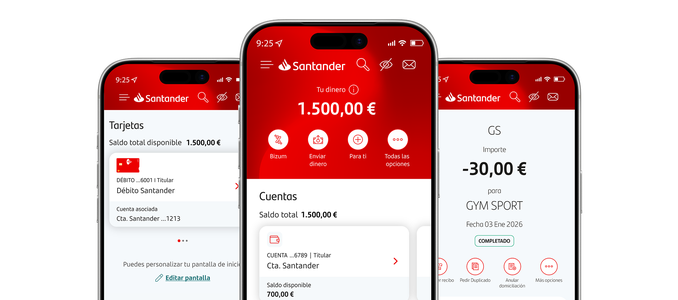
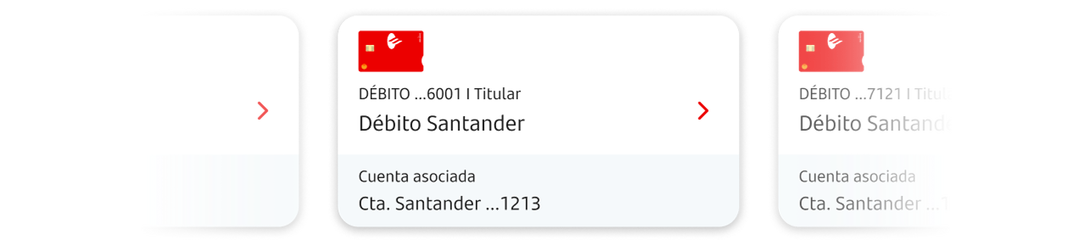
Products grouped by categories with a new side scroll to access them.
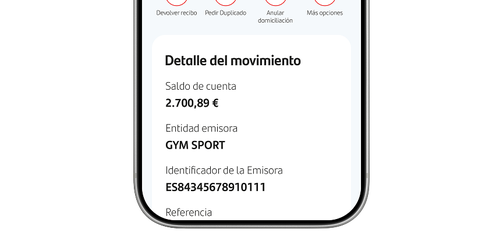
Everything is more detailed in the same place: each movement or payment will directly have all the information and options available.

Faster
Personalised shortcuts to get to your most frequent transactions faster: Bizum, transfers or whatever you prefer.
We’ve shortened loading times so you don’t have to wait to see your products and transactions.
MORE CUSTOMISABLE
More you!
Tailor it to your own tastes and preferences so you always have what you genuinely need right there:
Everything at your fingertips
Customize the home screen to always have what you use most at hand.
And all of this with the outstanding security and privacy you've come to expect!

Turn on “Discreet Mode” to use it anytime, anywhere without anyone being able to see important data.
Because the new Santander App makes everything very easy for you
Recognise your transactions at a glance
Your account transaction list contains key information on all account activity, including PDFs of your direct debits and transfers.
Check your spending map when you pay by card
So you can see at a glance where each purchase was made.
Analyse your spending with our Financial Assistant
The Financial Assistant sorts your monthly spending into categories to help simplify your finances. It also lets you view products you hold with other banks.
Manage your cards
Block your cards, activate or deactivate them, and view your PIN and CVV.
Personalised recommendations for you
You’ll see a carousel of recommended products tailored to your interests.
Always up to date
Set up alerts to stay informed about your transactions and receive all the latest updates.
All about the Santander App
To view your products, simply scroll down on the home screen. You’ll see them organised by contract type: Accounts, Cards, Loans and Mortgages, Savings and Investments, and Insurance. Within each category, you can swipe sideways to view all your products. Just tap on a product to see all the details.
You can choose to view your accounts and cards together in a single section called “Your everyday products” by following these steps:
- On the home screen, swipe down and tap “Edit screen”.
- Select "Choose a new view".
- Tap "By category”.
- Tap “Confirm” to apply the new settings. On this same screen, you can also reset the changes if needed.
“Your money” shows you the total of all Santander products that are visible on your home screen: accounts, savings and investments, and prepaid cards. Remember that, if you have personalised your view and hidden any products, those products will not be included in “Your money”.
You are free to personalise your accounts, cards and other products by adding an alias to make them easier to identify. All you need to do is follow these simple steps:
- At the top of the home menu, click on “All options” (…).
- Select “Rename products”.
- Find the account or product you want to change and tap the pencil icon.
- Enter the new alias and tap “Save”.
You can change or remove the alias at any time.
If you don’t want to see those accounts where you’re named as an authorised user, you can personalise the home menu by following these simple steps:
- On the home screen, swipe down and tap “Edit screen”.
- Select the products you want to display and rearrange them as you like by clicking and dragging them up or down.
- Tap “Save changes” to apply the settings. On this same screen, you can also reset the changes if needed.
You can also choose how your products are displayed via the “Edit screen” menu, selecting either by category or by product, allowing you to personalise your view to suit your preferences.
You can manage shortcuts by following these simple steps:
- On the home menu, tap “All options” (…), at the top of the App, just below “Your money”.
- Then tap “Edit options”.
- Select the featured action you want to move and drag the icon to place it where you want it.
- Confirm the changes and you’ll now see your selected featured actions on the home menu.
You can personalise your App home screen by following these steps:
- On the home screen, swipe down and tap “Edit screen”.
- Select the products you want to display and rearrange them as you like by clicking and dragging them up or down.
- Tap “Save changes” to apply the settings. On this same screen, you can also reset the changes if needed.
Remember that, if you want to use a hidden product, you’ll need to make it visible again to view it and carry out transactions as normal.
From this menu, you can also choose how your products are organised on the App home screen (By category or By product).
What’s more, if you tap the eye icon in the top-right corner of the home screen, you can switch Incognito mode on or off.
To add a photo to your App profile, just follow these steps:
- On the App home menu, tap the initials shown above "Your money".
- Then tap "Add image".
- Select: "Take a photo" or "Choose from gallery".
When you access Santander’s digital channels, the default language is Spanish. You can change the App language by following these simple steps:
- Tap “Personal area”.
- Scroll down and tap “App language”.
- Choose a language (Spanish, Catalan, Galician, Basque, English, French, Italian, Portuguese or Polish).
- Finally, tap “Save changes”.
You can check whether Santander App notifications are enabled by following these simple steps:
- Tap the “Personal area” menu.
- Tap "App permissions" and check that “Notifications” are enabled. Remember, it’s very important to keep your phone’s operating system updated to the latest available version.
Discreet mode in the App gives you extra privacy, as all amounts and balances for your products will be hidden on the home screen.
You can quickly turn it on or off from the home menu by tapping the eye icon in the top-right corner.
Our apps automatically detect whether the mobile device you’re using supports fingerprint (Touch ID) or facial recognition (Face ID). You’ll need to have your fingerprint or facial scan already set up on your phone.
To enable this, log in to the App by selecting “Remember user". After entering your ID document and access code, you’ll be given the option to log in using Touch ID or Face ID in future. Tap "Accept" and from then on you’ll be able to log in quickly and securely without having to enter your access code each time.
Note that if you tap "Security and codes" from the "Menu” (three horizontal lines icon) and then select “Set up App codes, signature and permissions”, you can turn Touch ID / Face ID on or off under "Permissions – Touch ID".
If you ever need help, you can use the Search tool at the top of the App (just look for the magnifying glass icon). If you head to bottom of your home screen, you’ll also find a section called “Need help?”, where you can contact your relationship manager (if you have one) or speak to a customer advisor for information about arranging products. You’ll also find a direct link to the Help Centre for further contact and support options.
What do our customers think?
Trust those who already use it.
More than 6 million people already use the Santander App in Spain.
4,8 /5

+420 mil ratings

4,7 /5
+475 mil ratings
